 opensus
Projects, saving and exports
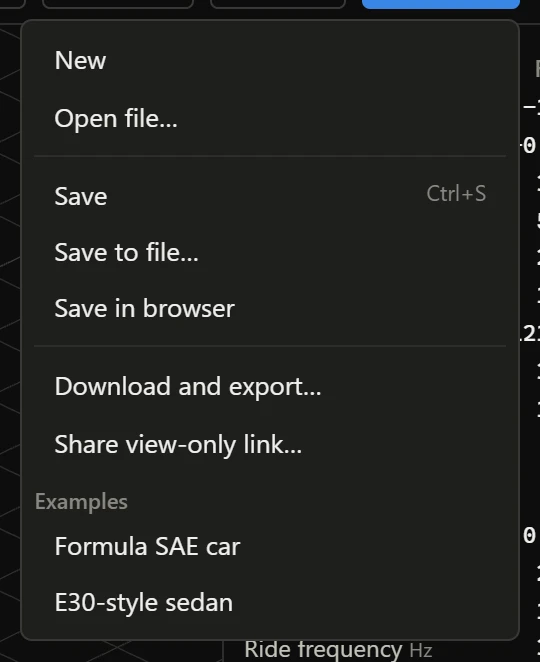
Use Project in the top bar to create, open, save and export designs. Click the design name to rename it. The hosted tool requires a free account; signing in does not upload your projects or synchronize them between computers.
Recovery is not a backup
opensus keeps the working design in this browser as you edit, when browser storage is available. Unsaved changes means those edits have not been saved to the selected file or named browser entry. Click that status or press Ctrl+S (Cmd+S on Mac) to save.
| Command | What it does |
|---|---|
| Save | Uses the last save destination. With no destination, signed-in users are offered a file save |
| Save to file… | Chooses a project file destination; requires a free account on the hosted app |
| Save in browser | Stores a named design under Saved in this browser in the Project menu |
| Open file… | Opens a complete .opensus.json or compatible .json project |
| New / an example / a saved design | Replaces the working design; offers Save, Don't save or Cancel if there are unsaved edits |
Where supported, later saves write to the same file after the browser grants access. Other browsers download a new copy instead. Check the save status and the destination. Saving in the browser with the same name updates that entry: rename a design first if you want another version.
Browser storage belongs to this browser profile and site address. Clearing site data, using a different device or private browsing can lose access to it. Keep project files as independent backups. Files include geometry, force elements, adjusters, load-case definitions, measurements and saved plots; they do not carry your account, browser display preferences or separate Compare baseline.
Download and export
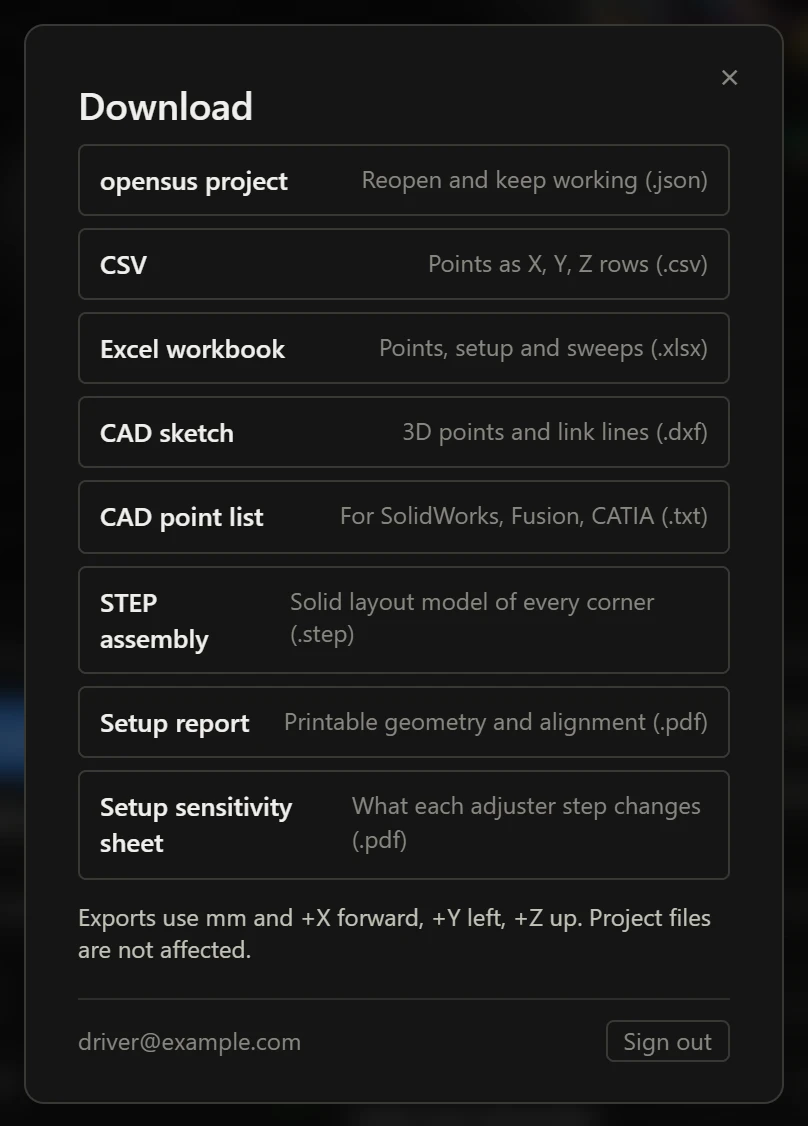
Open Project → Download and export…. Project files and CSV point export are Free. CSV plot data is a separate Pro feature in a plot's Export menu.
| Export label | Contents | Plan |
|---|---|---|
| opensus project | Complete editable project JSON | Free |
| CSV | Hardpoint X, Y, Z rows | Free |
| Excel workbook | Points, setup and kinematic sweeps | Pro |
| CAD sketch | 3D points and link lines in DXF | Pro |
| CAD point list | Text point list for CAD import workflows | Pro |
| STEP assembly | Solid suspension layout for packaging in CAD | Pro |
| Setup report | Printable geometry and alignment PDF | Pro |
| Setup sensitivity sheet | Printable adjuster effects PDF | Pro |
| PNG / SVG / Copy image | Chart image from an expanded plot | Free |
| CSV data | Numerical series from an expanded plot | Pro |
The STEP assembly
The STEP assembly is the car at its design position, drawn as the 3D view draws it and in the same colors, including any you picked. Under the car:
- A folder per corner (
FL_cornerand so on) with a part for each arm, link, upright, damper, spring and wheel. An arm is one part made of its tubes, each tube named by the points it joins (FL_upright_wheel_center_to_lower_ball_joint). FL_jointsin each corner: a ball at every point the parts meet, named after the point (FL_lower_ball_joint). A point two parts share is one ball.- Parts that belong to an axle rather than a corner, prefixed
F_orR_: the sway bars, the steering rack, and on a live axle its housing and Panhard rod.
Every name comes from your design: the labels you gave points, parts and springs, in lower case with underscores, after the corner or axle. Springs are real coils, with the wire diameter, coil diameter and number of turns from Springs and dampers and a closed coil at each end.
These are simple layout shapes, not production-ready components: something to design real parts around. Point and CAD exports describe the design geometry, not an arbitrary animated transient frame. Check Settings before export: numeric exports follow the selected units and axes. Project JSON always keeps the internal ISO coordinates, so changing display settings does not change the design.
Share a design
Send the whole project
Send a project file when someone needs to edit the whole model. Choose Project → Save to file…, send the file, and the recipient opens it with Project → Open file….
Share a view-only link
Project → Share view-only link… publishes a copy of the design so that others can look at it without editing it. You need to be signed in.
- Choose Project → Share view-only link…, then Share “
” . opensus uploads a snapshot of the design and shows its link. - Click Copy and send the link. Anyone with the link can open it, without an account, to turn the car and move it through its travel in 3D. They cannot edit it or see the analyses, saved plots or load cases.
- The link keeps showing the snapshot until you update it. After further edits, open the dialog again and click Update to show the design as it is now. The dialog says when the link was last updated.
- Click Stop sharing to delete the snapshot. The link stops working for everyone.
Your working project stays in your browser and your files. Only the snapshot you choose to share is uploaded.
Share starting geometry as a link For a compact starting geometry, use an example or design link. That format covers template hardpoints and alignment rather than every project feature.
Try opening the Formula SAE example, renaming it, saving a file, and reopening that file. Then create a named browser copy so you can distinguish the two destinations. See accounts and feature access for the Free/Pro split.